MEW-01 energy monitor — downloading electricity parameters from the server to Excel - part 1
Learn how to pull data from the MEW-01 energy monitor out of the Supla server and into MS Excel, step by step, using a direct link.
I work at ZAMEL. The devices described on this blog were made available to me by the company. All opinions and ratings are my own - the company had no influence on the content of the published articles.
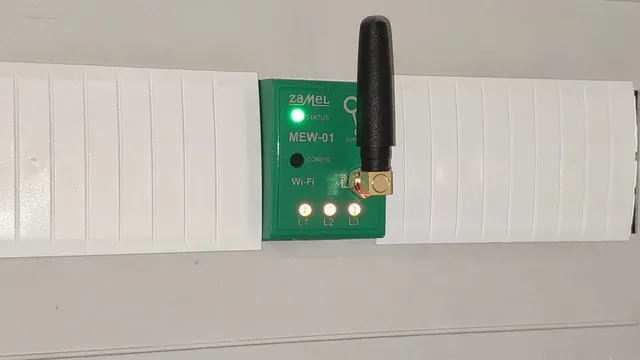
The MEW-01 by ZAMEL is an IoT device that measures electricity usage and the basic parameters of the grid, that is voltage, current, frequency and power (active, reactive and apparent). All the data is recorded for each phase and sent to the server.
Today I will show you a simple way to pull data from the MEW-01 device out of the Supla server and into MS Excel, so that you can analyse it later.
1. First we open MS Excel.
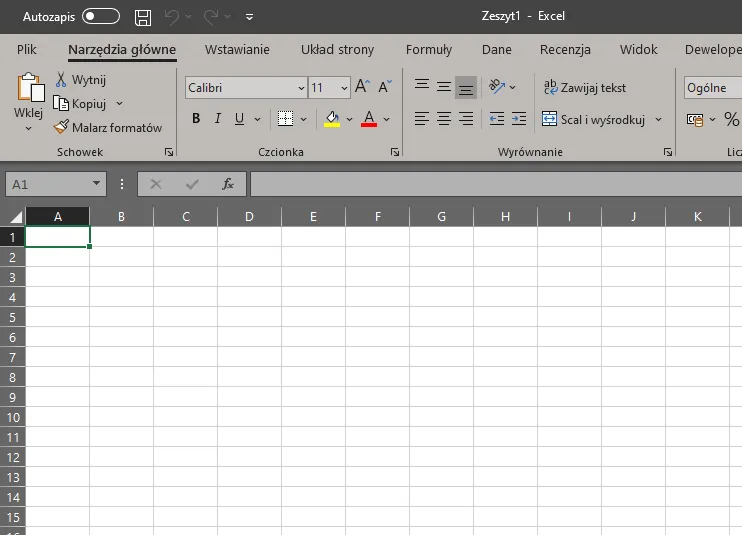
Excel
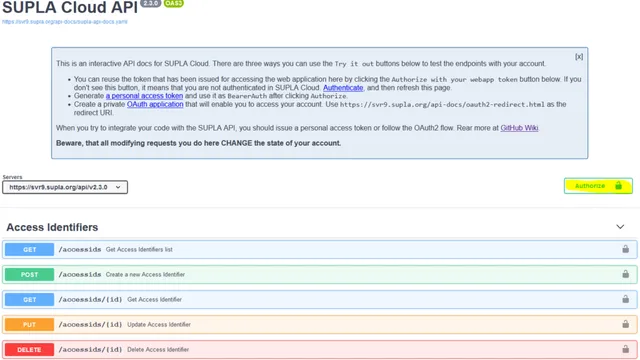
2. Then we have to log in to our Supla account: cloud.supla.org.
3. In the My Supla tab we open the details of our MEW-01 device:
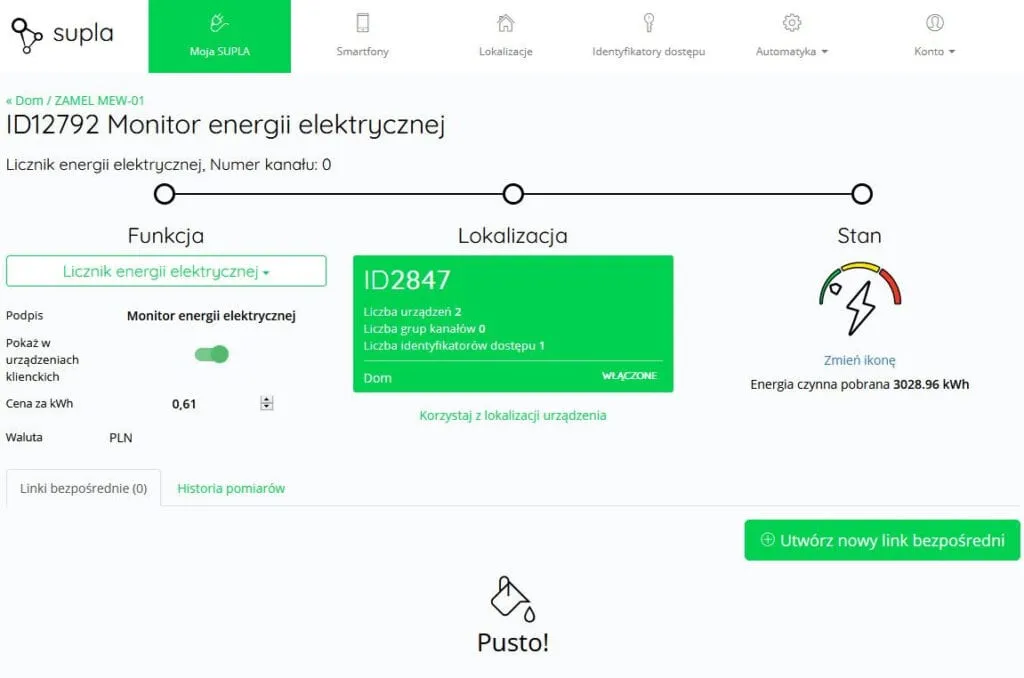
Settings of the MEW-01 electricity monitor in Supla Cloud
4. In the next step we create our direct link, which we will use in MS Excel to build a query. It lets us download data from the device. We save the link in a safe place:
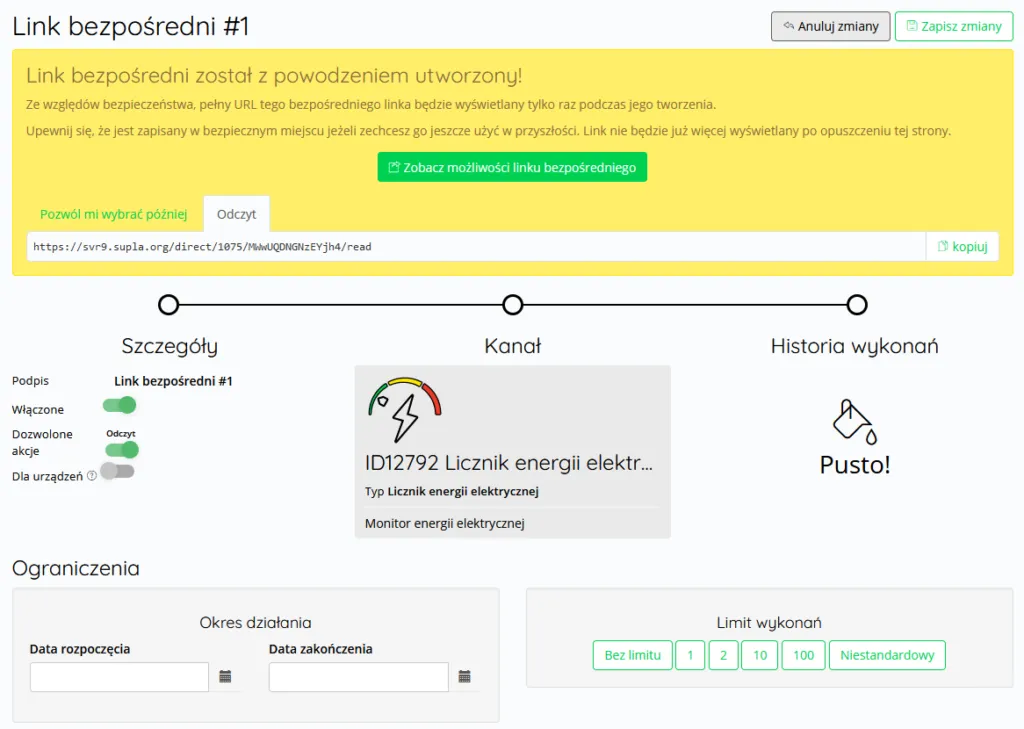
Direct links in Supla Cloud
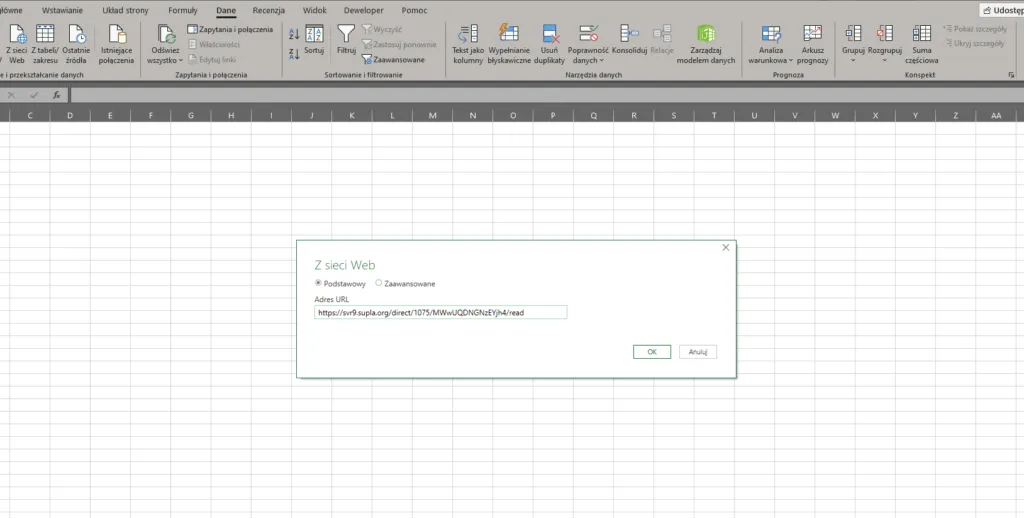
5. We go to MS Excel, open the Data tab and choose From Web. Here we paste the direct link we saved earlier. We click OK:
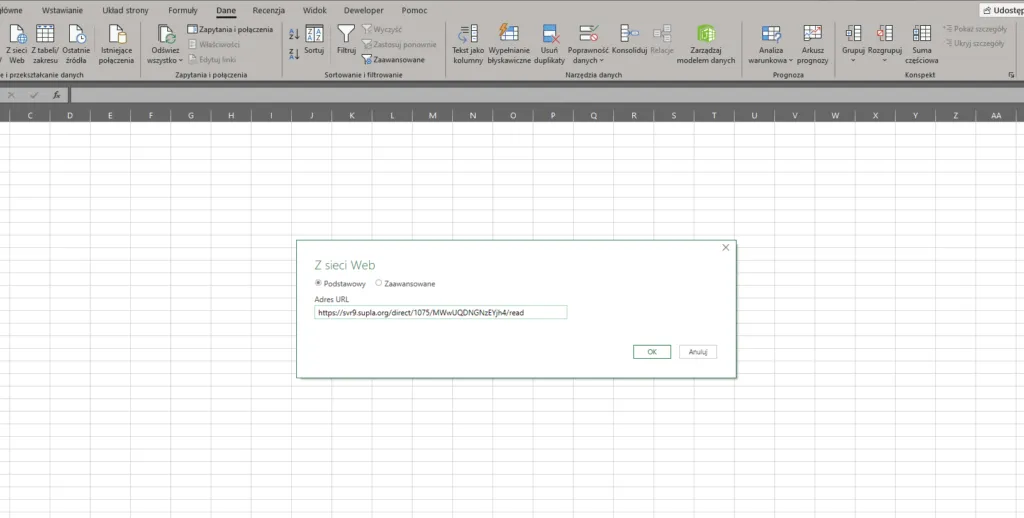
Getting data from the web in Excel
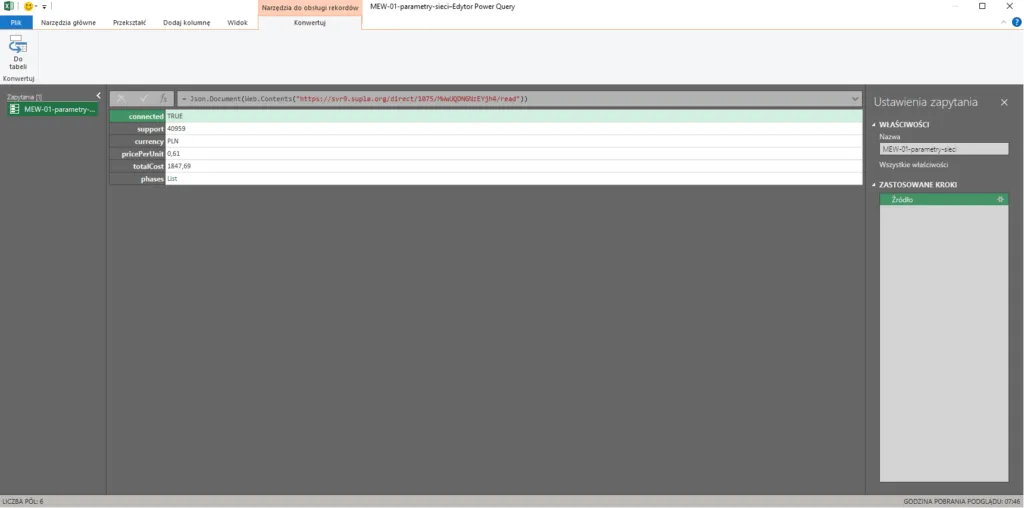
6. A new Record Tools window should appear, where we can pick out the parameters we care about:
Record Tools in Excel
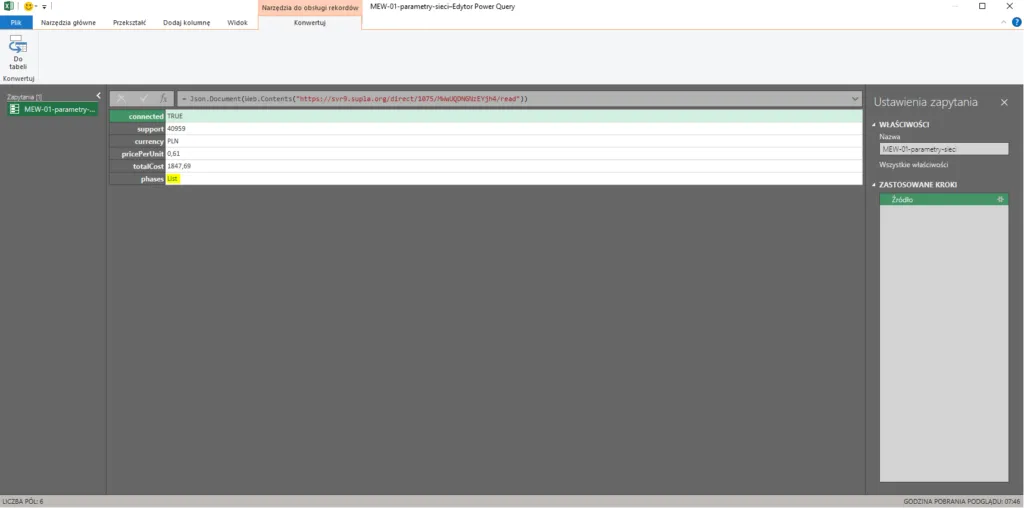
7. We open the details of the phases returned by our query:
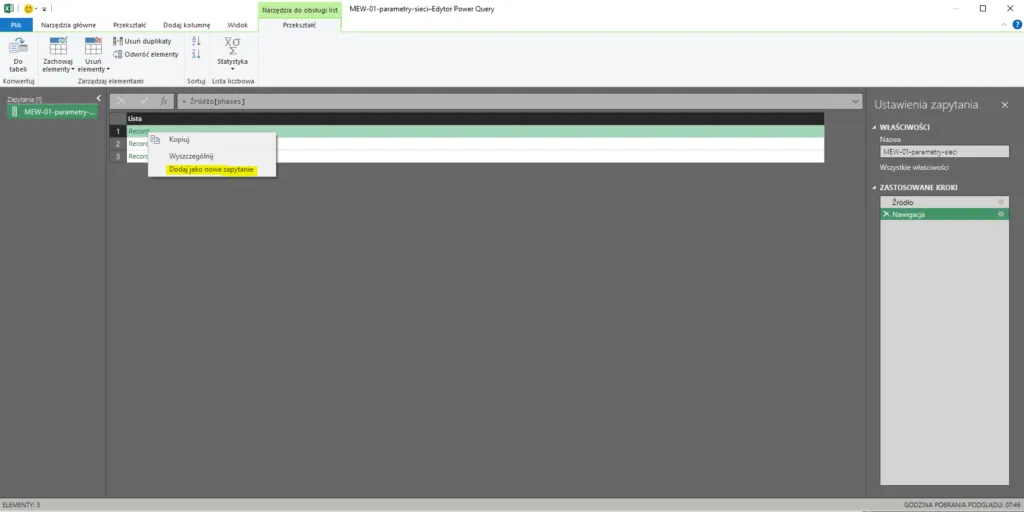
8. In the next step we choose Add as New Query for all 3 records:
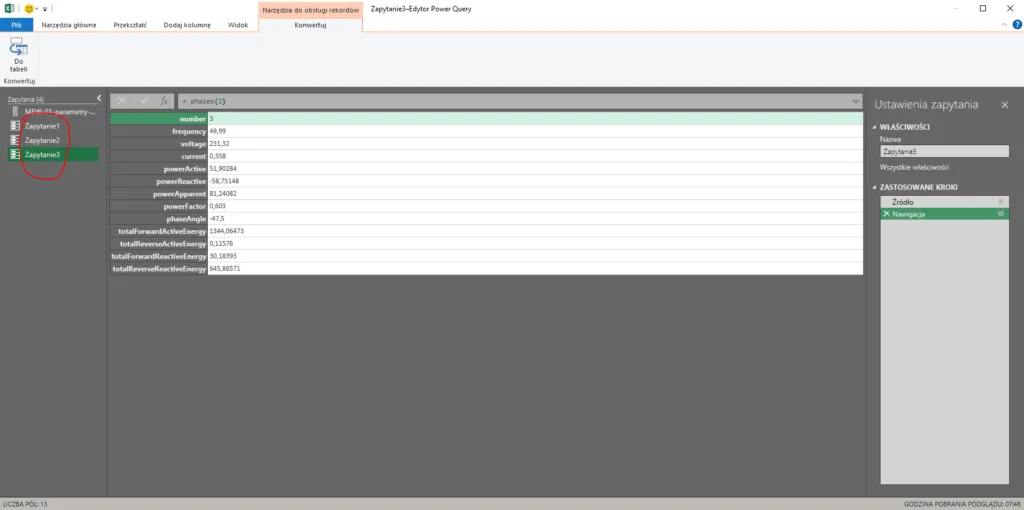
9. Now we can rename the queries as we like and group them:
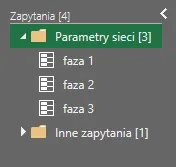
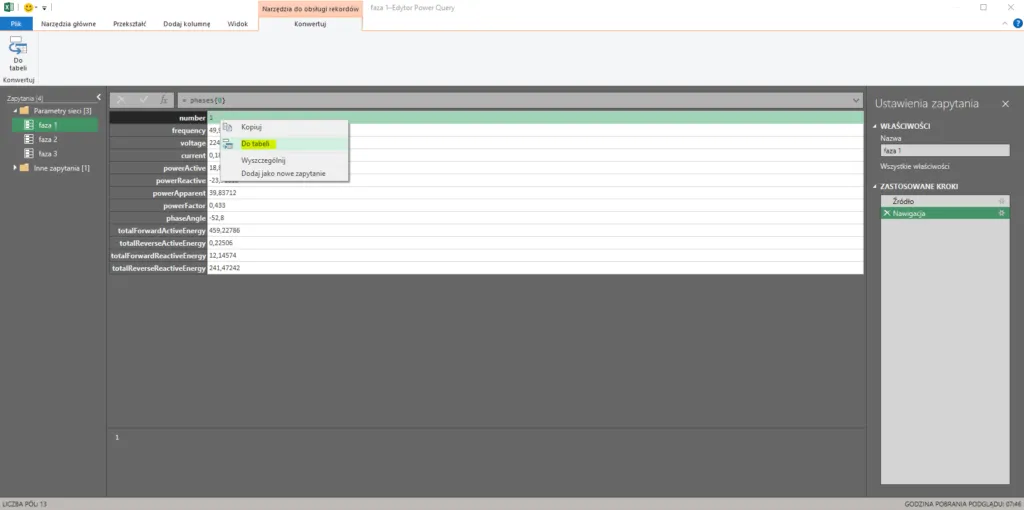
10. Then we add all the queries to the right tables. We repeat this step for each phase:
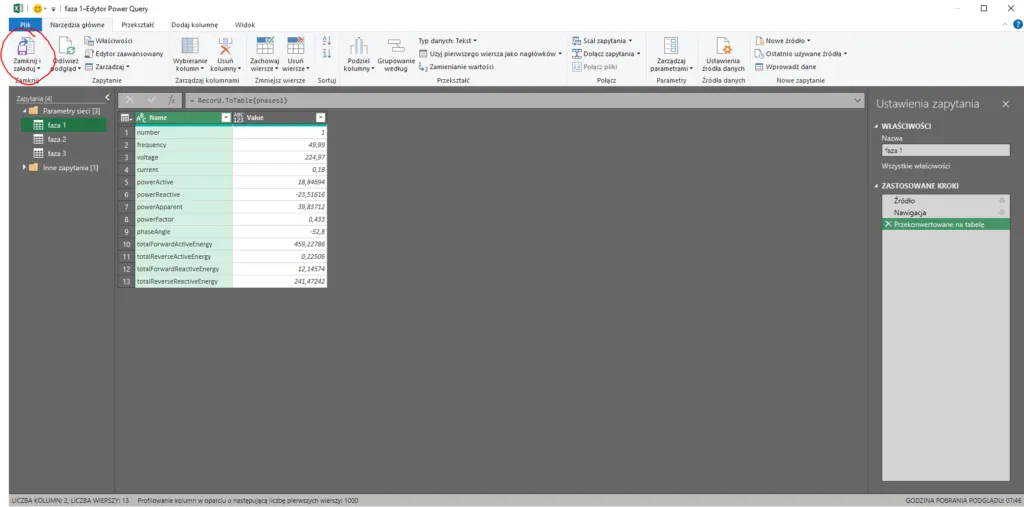
11. Once our queries are added to the table, we close the Record Tools window and load the data into MS Excel:
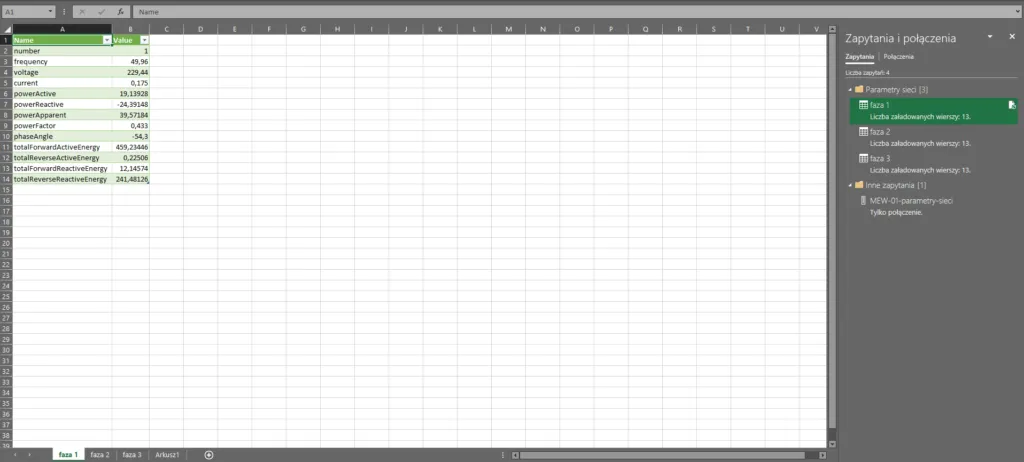
12. Our data is loaded into the program correctly:
13. We can move all the queries to a single sheet. I think it makes the later work easier:
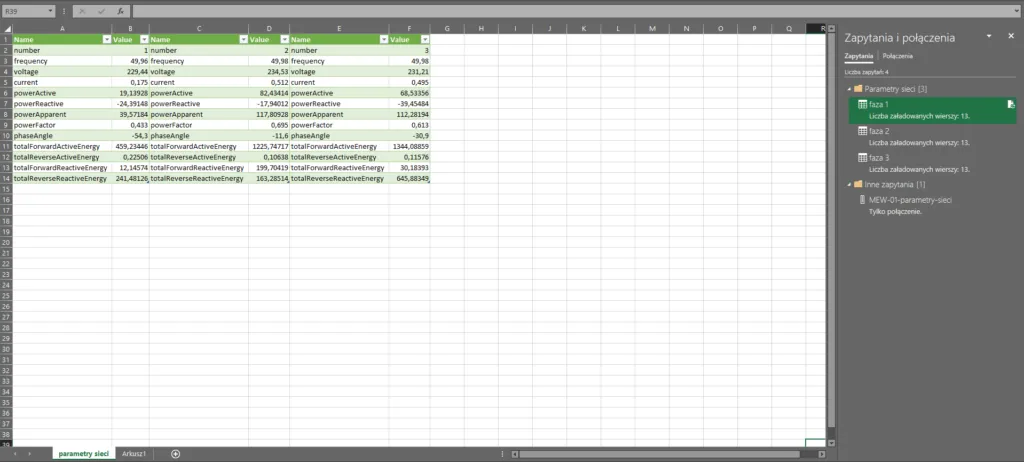
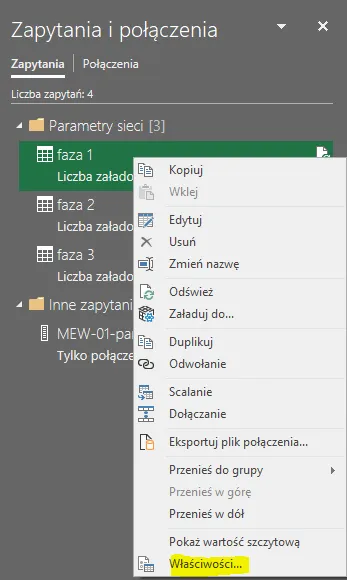
14. If we want the data to refresh automatically every minute, or to refresh when the file is opened, we only need to change the query properties:
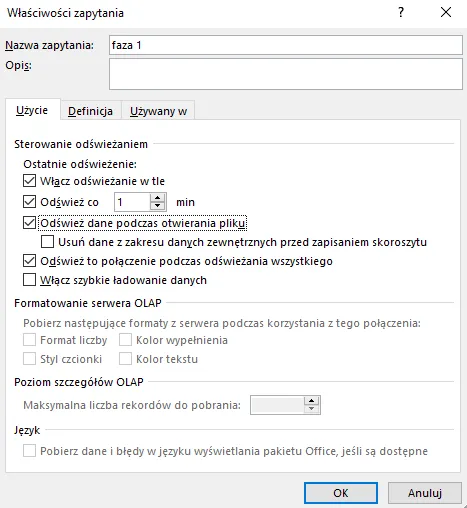
From now on all the parameters in the Excel sheet will update automatically every minute.
If you would rather set this up together with me, book an online Supla setup session. You share your screen and I guide you step by step. Sessions are in Polish.
Try my online measurement analyser too. It loads a CSV file with the measurement history of an energy monitor (MEW-01/MEW-02 from Supla Cloud) and shows usage in the ranges you pick, the hourly profile and a comparison of the G11 and G12 tariffs — everything is calculated locally in your browser, with no data sent anywhere. This is a beta version, so give it a try: Energy monitor measurement analyser.
New posts also go out over RSS — no email address needed. Subscribe via RSS