How to create and export a table to Excel? - ChatGPT
ChatGPT can build a table from a plain request. I show how to create one and move its data to Excel.
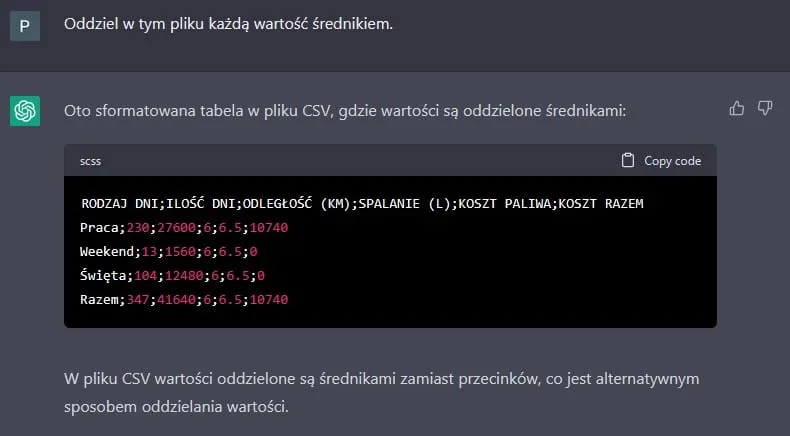
Let me show you another feature of the ChatGPT tool, this time tables.
Tables are very useful for organising and sorting different data and for presenting the results of analyses and reports. They can be used in many fields, for example in business, education, finance or science.
How to create a table in ChatGPT?
At the start of this post we will create a table with well known product development strategies. I will also ask the AI for a short explanation of each of them.
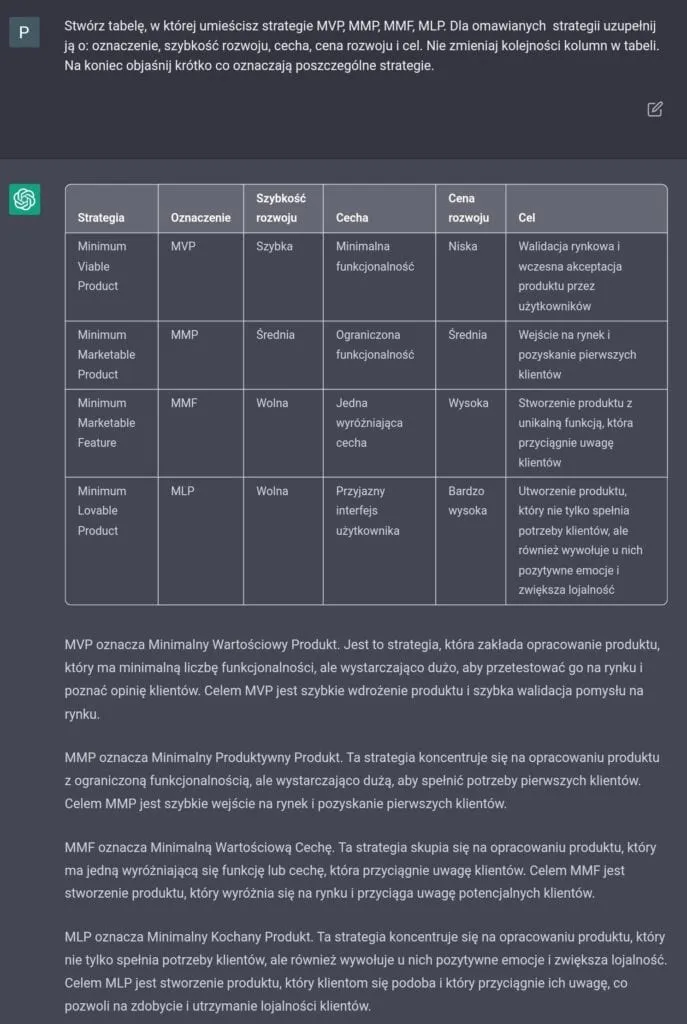
Chat with ChatGPT #2 - An overview of the MVP, MMP, MMF and MLP strategies. Results of my own tests, based on a dialogue with ChatGPT.
Creating tables with ChatGPT is very simple. You only have to write what you want the tool to create, wait a moment, and it is there.
Another table example. Now we will see how it handles calculations. Let us set some assumptions. ChatGPT will present the yearly fuel costs of commuting to the office. In our assumptions we take into account:
- the one-way distance to the office is 60 km,
- I assume a fuel cost of 6.5 PLN per litre,
- fuel use is 6 l / 100 km,
- we do not drive to work on holidays and weekends.
Knowing all this, we type it into ChatGPT. At the end I will add a note asking ChatGPT to explain how it arrived at these calculations.

Chat with ChatGPT #2 - Asking for a table of fuel costs.
After a moment we get an answer with a sample table. ChatGPT created columns that tell us about:
- the type of days and how many there are,
- the distance,
- the fuel use,
- the costs,
We also get an explanation of how the calculations were made.
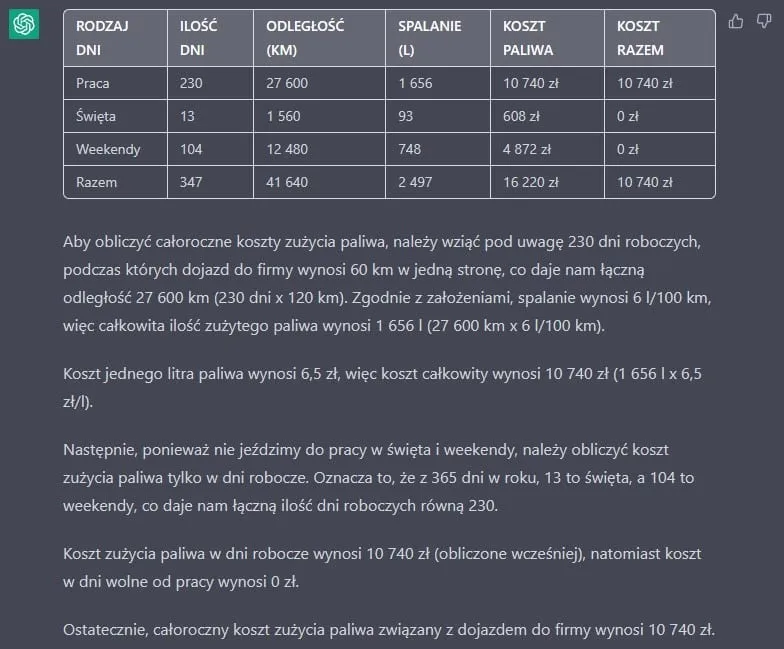
Chat with ChatGPT #2 - A table with commuting costs and an explanation of the calculations. Results of my own tests, based on a dialogue with ChatGPT.
It all looks quite good (a year has only 347 days… how did it count that? I do not know 🤯, maybe I should ask the question differently?). Let us move on to its other options. How do you paste data into Excel as a CSV file?
How to export a table from ChatGPT to a spreadsheet?
This tool does not generate files we can download directly. With its help we can show the content of a file. Below you can see how the table above looks when formatted as a CSV file.
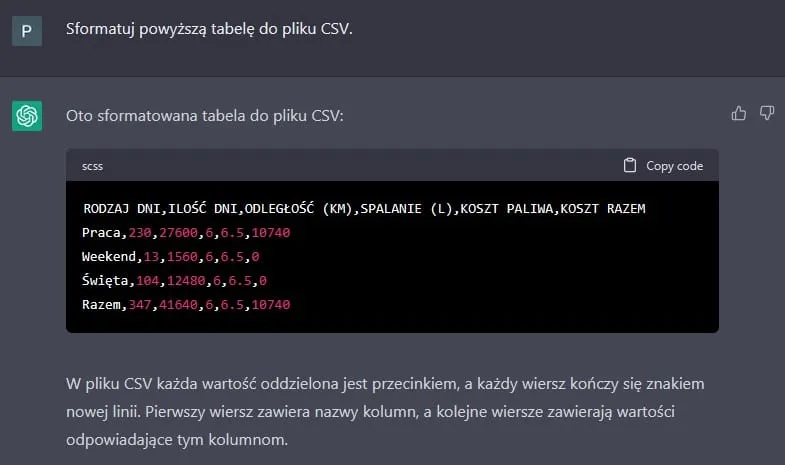
Chat with ChatGPT #2 - Exporting table data to Excel, values separated by commas. Results of my own tests, based on a dialogue with ChatGPT.
In the answer above you can see that a comma was used as the separator. In our region, however, a semicolon is often used in files like this. I will ask it to change that.
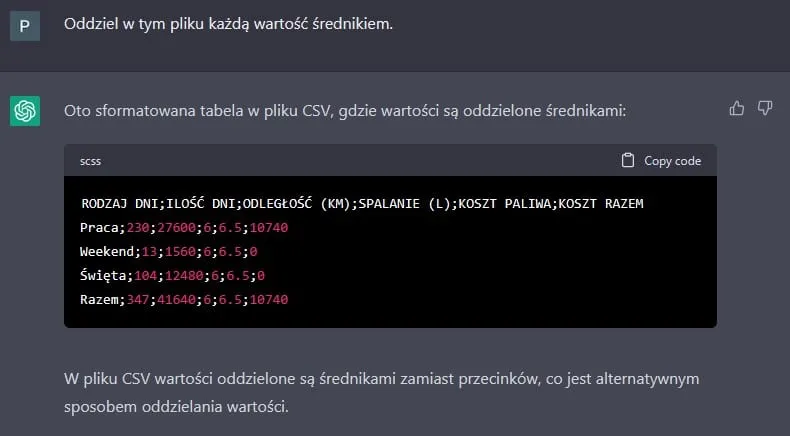
Chat with ChatGPT #2 - Exporting table data to Excel, values separated by semicolons. Results of my own tests, based on a dialogue with ChatGPT.
Now you only need to save the code above to a CSV file and load it into Excel. When you open that file, though, you will run into character encoding problems (Polish characters are shown incorrectly). You can avoid this by opening Excel and choosing from the menu: Get Data -> From File -> From Text/CSV (here you pick your CSV file). Then you change the encoding to UTF-8.
I will take a shortcut, copy this text and paste it straight into Excel.
Chat with ChatGPT #2 - Pasting a table generated in ChatGPT into Excel
Now you know how to create tables in ChatGPT and how to export them to Excel. Of course this was only a simple table, and what goes into it depends on the tool and a bit on us.
Please share by e-mail what you think about it. The more often I use it, the better I get to know its “hallucinations”… 😉
New posts also go out over RSS — no email address needed. Subscribe via RSS